
Google Apps Scripts: Automation and Efficiency within the Google Ecosystem

Introduction
In today's technology world, the ability for efficiency, automation, and tool integration is fundamental to improving time in work processes, and one tool that allows this but is not widely utilized in organizations or work teams is: Google Apps Script.
This tool allows automating processes, integrating services, and creating customized solutions within the Google Workspace ecosystem. It offers a development environment in the browser, so it can be easily used without the need to install anything.
This blog will explain what it is, how it works, and why it can become an ally to improve productivity in a workflow.
What is Google Apps Script?
Google Apps Script is a serverless development platform that uses JavaScript as its programming language, which eliminates the need to install additional software or maintain servers.
This platform allows custom automation of workflows, integrating the different tools offered by Google in such a way that it enables multiple connections between components to streamline task communication.
Some of the tools that can be worked with are:
- Google Sheets
- Google Docs
- Gmail
- Google Drive
- Google Forms
- Google Calendar
By creating simple scripts, it is possible to create custom functions, automate repetitive tasks, connect external services via APIs, and develop small internal applications that optimize work processes.
What is its relevance?
In many organizations or work teams, a large part of the time is lost performing manual tasks such as:
- Copying information between spreadsheets
- Sending repetitive emails
- Generating periodic reports
- Processing form data
With Google Apps Script, these processes can be automated, reducing human errors and freeing up time for higher-value tasks. Additionally, its native integration with Google Workspace makes it especially useful for companies that already use these platforms as part of their daily operations.
Main advantages
Some of the benefits offered by this tool have been mentioned, but let's list them more clearly:
- Automation of repetitive tasks: Allows automating manual tasks, reducing time and operational load.
- Integration between Google tools: Facilitates communication between the different applications offered by the Google ecosystem, enabling the creation of intelligent workflows.
- Development with JavaScript: Being one of the most widely used programming languages, many developers do not need to learn this technology from scratch, and they can also rely on Google's documentation.
- Connection with external services: By connecting with external APIs, it expands integration possibilities with enterprise management systems, data analysis platforms, notification services, CRM systems.
- Invisible authentication: Uses Google's OAuth system and permissions, so authentication is automatically managed through the user's account.
- Free tool: Included in the Google ecosystem at no additional cost, but subject to established daily quotas and limits.
- Serverless: Operating under a serverless model, Google manages the infrastructure, scaling, and execution.
How is development done in Apps Script?
To get an approach to how you can work with Google Apps Script, a solution for a mini automated prospecting CRM will be shown below. In this example, a system will be built that detects emails from potential clients, organizes them in a spreadsheet, notifies the team via Slack, and allows measuring data through a customized interface.
For this example, the following flow will be carried out:
Email received in Gmail
        ↓
Apps Script analyzes the content
        ↓
Detects keywords
        ↓
Registers in Google Sheets
        ↓
Notifies the team on Slack
        ↓
Team reviews opportunity
        ↓
Customized metrics UI
1. Data Capture and Service Connection
There are two ways to start developing within this platform, which are:
- Container - bound: It is directly associated with a Google document (Sheets, Docs, Forms), which allows extending the functionalities of these documents.
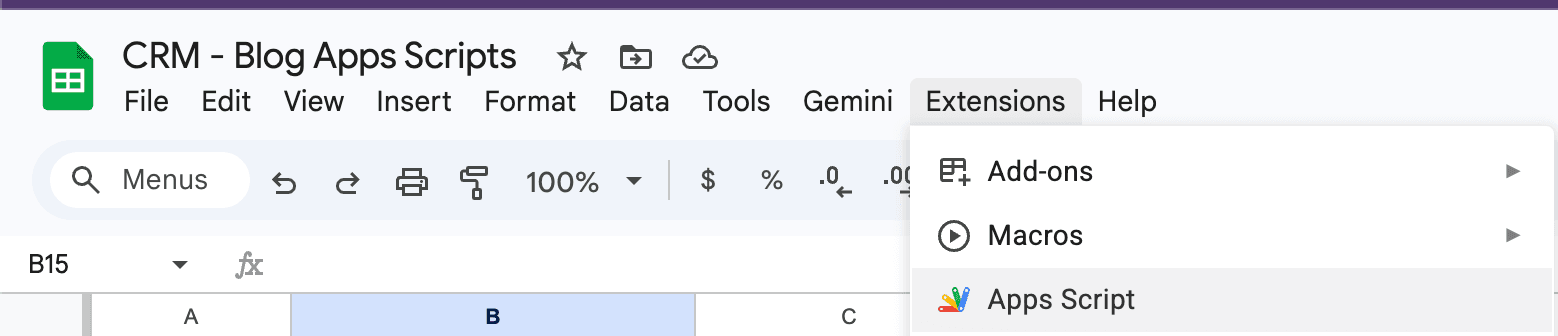
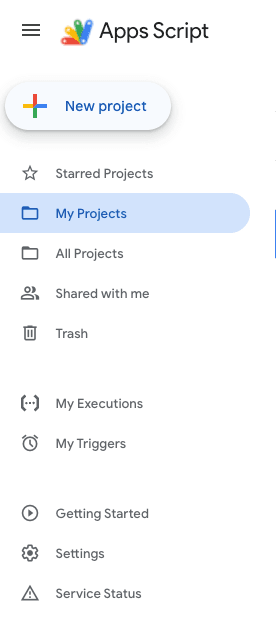
- Standalone: Creation of a standalone file within Google Drive that has the advantage of being able to connect to multiple services.
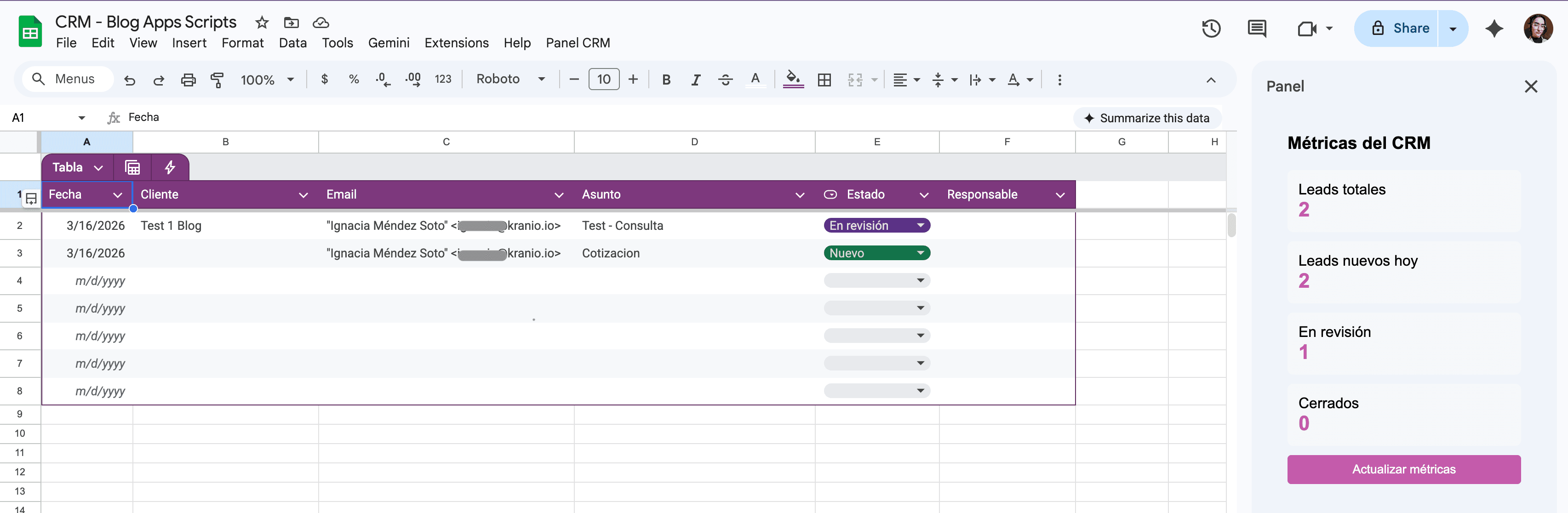
For this case, it will start from a simple Google Sheets, which will have the following fields: Date, Client, Email, Subject, Status, Responsible.
When selecting the Apps Script extension, a new tab will open with an initial script.
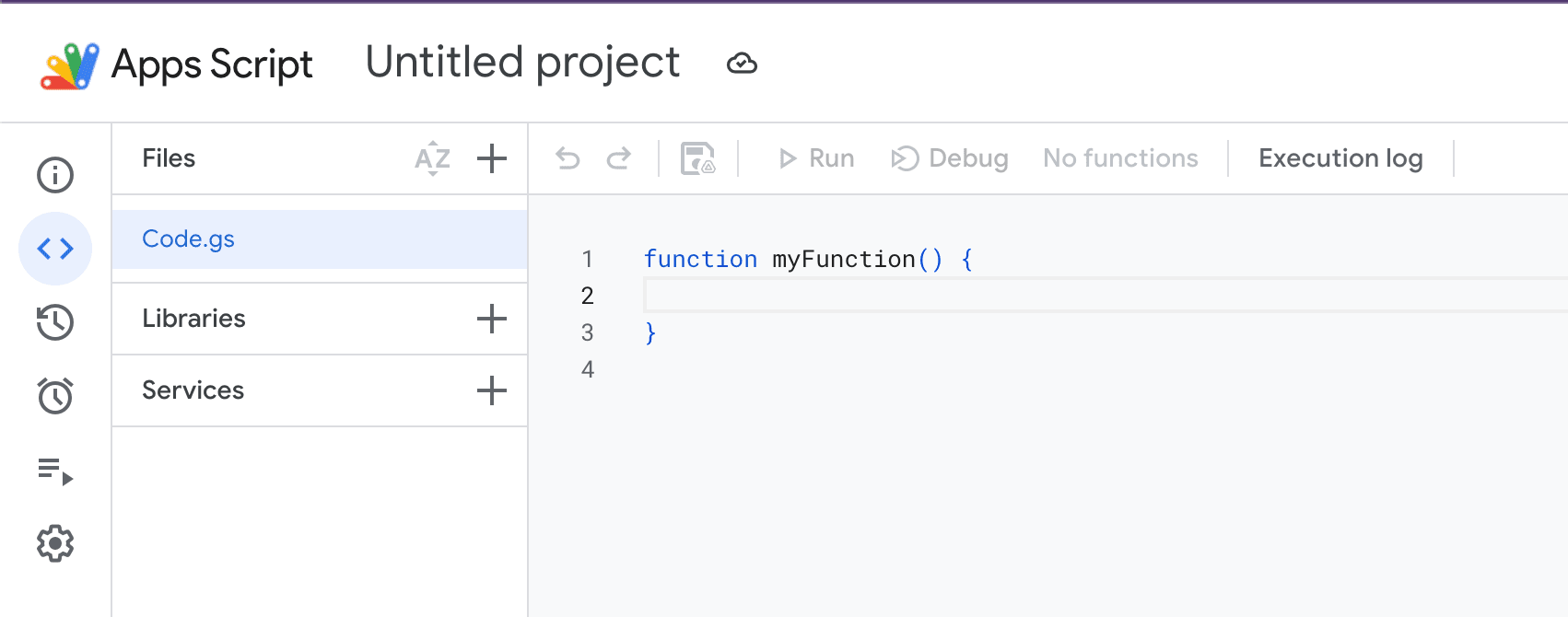
📌 Apps Script allows dividing the code into multiple .gs files, but all share the same runtime. This organization helps keep the project modular without needing to configure modules or imports.
For this case, the code will be created to help detect received emails with keywords like 'Quotation', 'Project', 'Development', 'Inquiry', taking the subject and content of the email, as well as the sender's email.
It should be known that to expose Google services through internal APIs, there are calls that allow direct interaction with these services without additional authentication such as GmailApp, SpreadsheetApp, or DriveApp.
File: main.gs
function revisarCorreos() {

	// Search for recent emails that have not yet been read
  const threads = GmailApp.search('is:unread newer_than:1d');

	// Get the sheet where leads will be saved
  const hoja = SpreadsheetApp
    .getActiveSpreadsheet()
    .getSheetByName("Leads"); //Sheet name

  threads.forEach(thread => {

    const mensajes = thread.getMessages();

    mensajes.forEach(msg => {

      const asunto = msg.getSubject();
      const mensaje = msg.getPlainBody();
      const email = msg.getFrom();

			// Check if the email contains keywords
      if (contienePalabrasClave(asunto + mensaje)) {

				// Register the lead in the sheet
        registrarLead(hoja, email, asunto, mensaje);

        // Notify on Slack
        notificarSlack(email, asunto);

        // Mark as read to avoid processing it again after successful flow completion
			  msg.markRead();

      }

    });

  });

}

function contienePalabrasClave(texto){

  const palabras = [
    "cotizacion",
    "cotización",
    "cotizar",
    "proyecto",
    "desarrollo",
    "consultoria",
    "consultoría",
    "consulta",
    "consultar"
  ];

  texto = texto.toLowerCase();

  return palabras.some(p => texto.includes(p));

}
Additionally, a function will be added to register the retrieved information inside a Google Sheets, mapping the newly received information, adding it to the main flow.
function registrarLead(hoja, email, asunto, mensaje){

  hoja.appendRow([
    new Date(),  // registration date
    "",          // client name
    email,       // client email
    asunto,      // subject of the received email
    "Nuevo",     // initial lead status
    ""           // responsible
  ]);

}
2. Automation through triggers
There are Simple Triggers and Installable Triggers.
The configuration of Triggers can be done between two options that should be known:
- Simple Triggers: They run automatically with specific names, but they cannot access external services. (example:
onOpen(),onEdit(),onInstall()) - Installable Triggers: These are configured manually and allow things like scheduled execution, access to APIs, or advanced automation.
To better understand Triggers, a manual configuration of one will be done. You should go to the left side of the panel to open the sidebar and select the Triggers menu, then select the “Add Trigger” button at the bottom right.
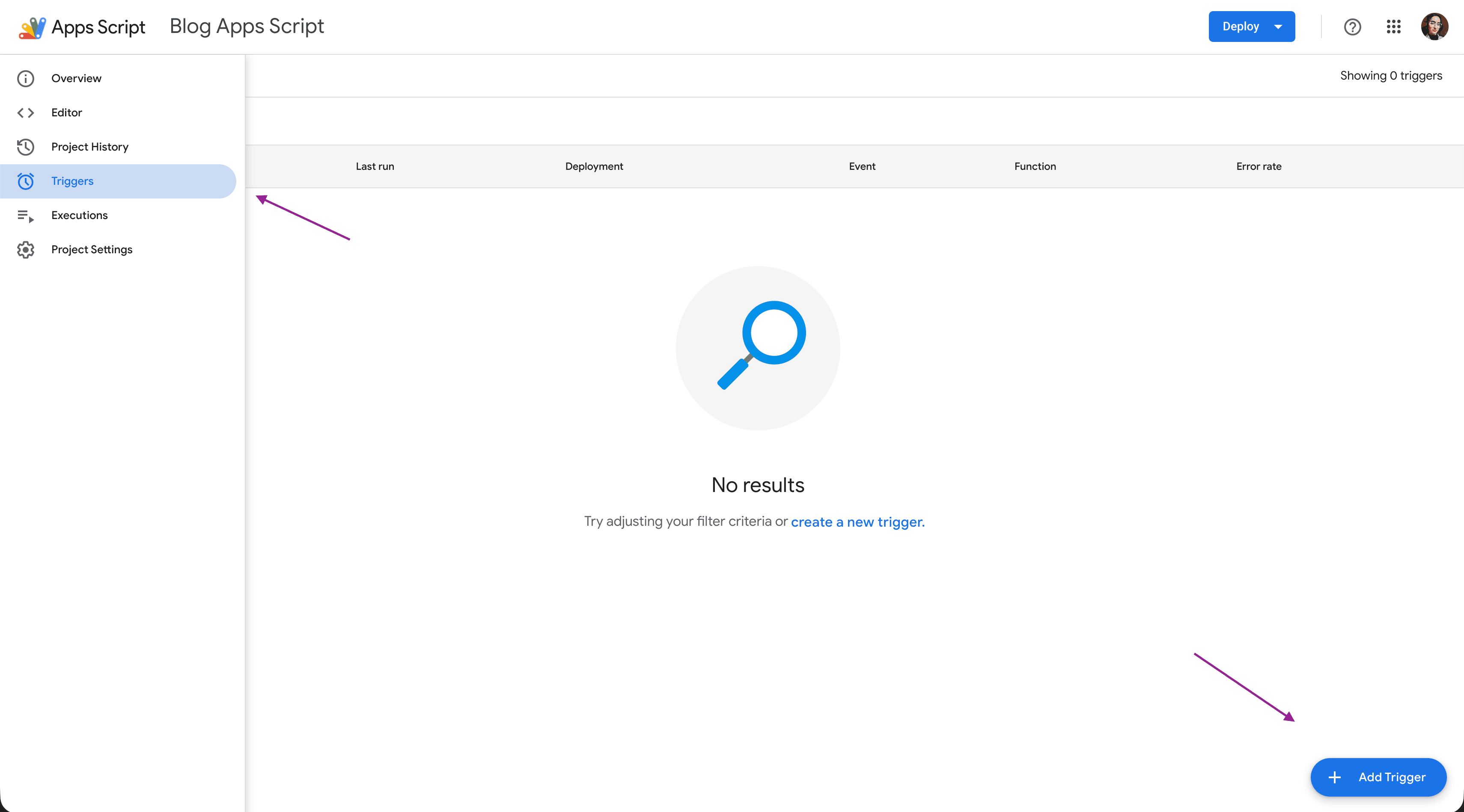
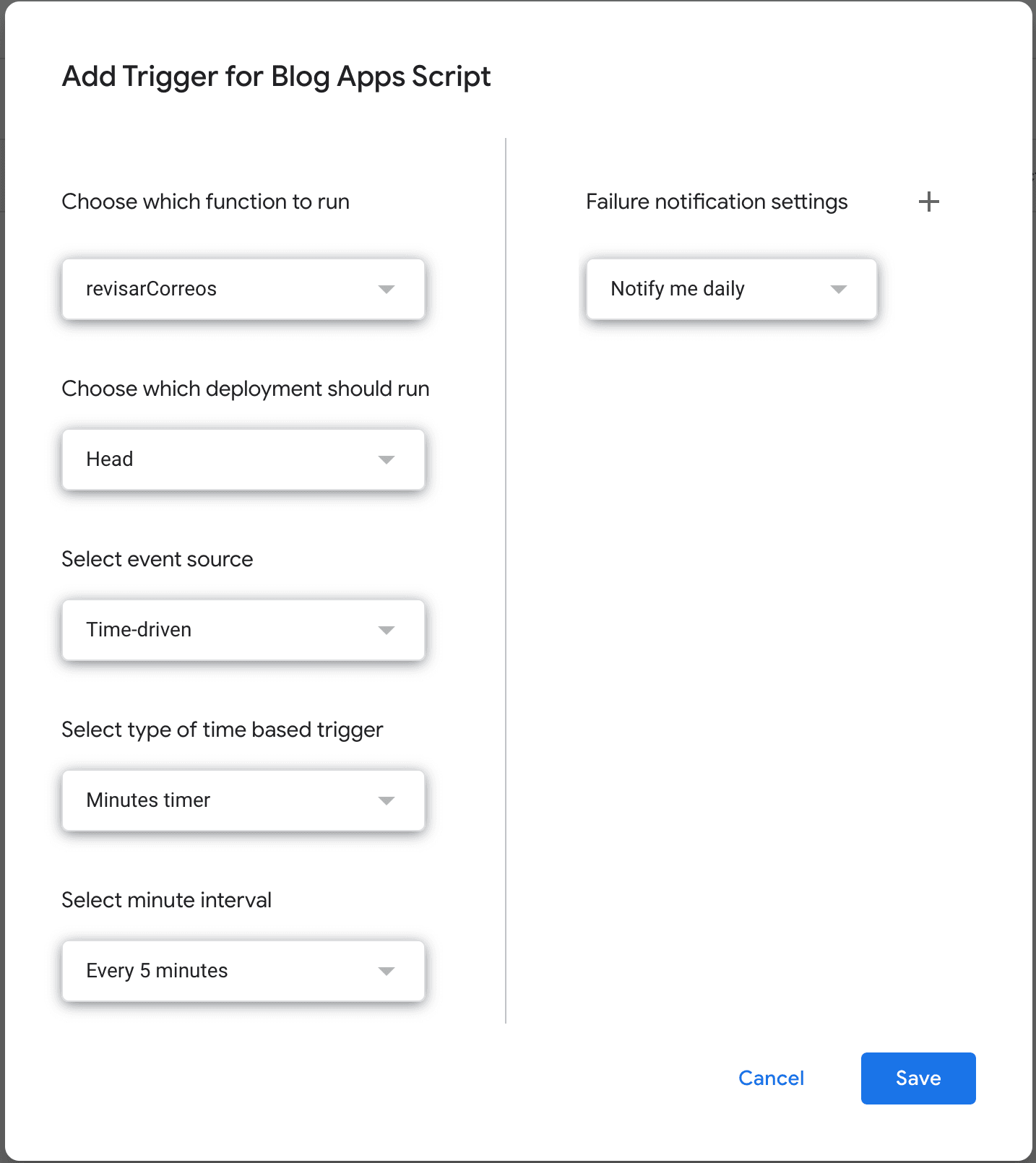
This will open a pop-up to configure the information to be associated with the Triggers, such as which function of the code you want to activate, the type of Event Source, how often it will be activated, and its interval.
For this case, we will select the function ´revisarCorreos´, an Event-Source by Time-driven, every 5 minutes.
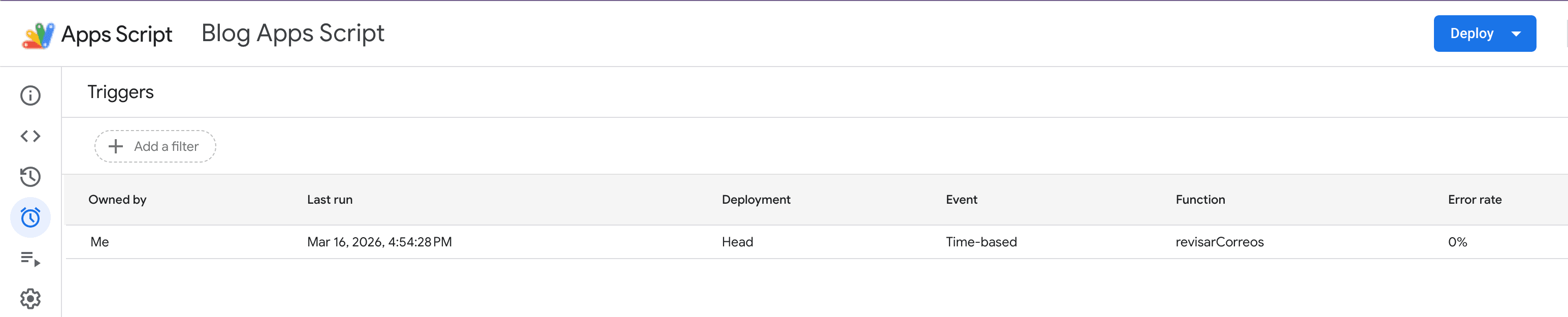
With this, you will be able to see the added trigger in the panel, and information such as its last activation, its error percentage, and more if you open the details.
3. Integration with external APIs
For connecting to external APIs, the script service UrlFetchApp is used, which allows actions such as GET, POST, PUT, and DELETE.
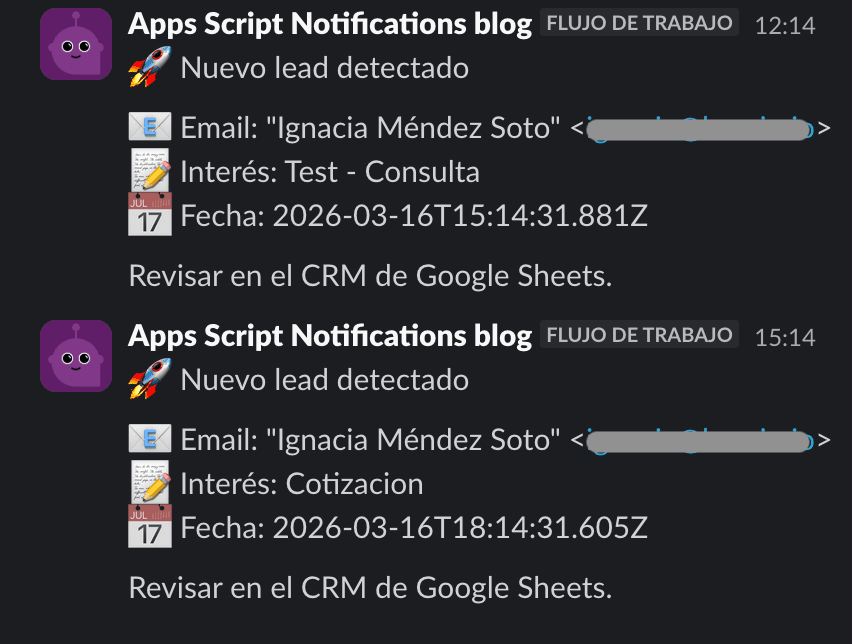
In this case, an example of integration with a Slack channel will be shown by sending a payload according to what was configured in the workflow that receives the notification inside Slack.
File slackService.gs:
/* Integration with Slack using a Webhook*/

function notificarSlack(email, asunto){

  const url = "SLACK_WEBHOOK_URL"; // replace with real webhook

  const payload = {
    email_cliente: email,
    asunto_correo: asunto,
    fecha: new Date().toISOString()
  };

  const options = {
    method: "post",
    contentType: "application/json",
    payload: JSON.stringify(payload)
  };

  UrlFetchApp.fetch(url, options);

}
4. Creation of simple interfaces
Apps Script allows the creation of interfaces using HTML, CSS, and JavaScript, where these interfaces can be shown as sidebars, dialog boxes, or even full web applications. For this example, a sidebar inside Google Sheets will be used.
In a new file, the user interface will be handled inside Google Sheets, where when the document sheet is opened, a new menu option will be created to quickly access the metrics panel in a sidebar.
File ui.gs:
/* Custom menu */
function onOpen(){

  const ui = SpreadsheetApp.getUi();

  ui.createMenu("CRM Panel")
    .addItem("Open Metrics Panel", "abrirCRM")
    .addToUi();

}

/* Open panel */
function abrirCRM(){

  const html = HtmlService
  .createHtmlOutputFromFile("crm")
  .setTitle("Panel");

  SpreadsheetApp.getUi().showSidebar(html);

}
Also, to properly handle and view this interface, an HTML file will be created to display the panel.
File crm.html:
<!DOCTYPE html>
<html>
  <head>

    <style>
      body{font-family: Arial; padding:15px; }
      h3{margin-top:0; }
      .metric{background:#f5f7fb; padding:12px; border-radius:6px; margin-bottom:10px;}
      .metric span{font-size:22px; font-weight:bold; color:#C45BAA;}
      button{width:100%; padding:8px; background:#C45BAA; color:white; border:none; border-radius:4px; cursor:pointer;}
    </style>

  </head>

  <body>

    <h3>CRM Metrics</h3>

    <div class="metric">
    Total leads<br>
    <span id="total">-</span>
    </div>

    <div class="metric">
    New leads today<br>
    <span id="hoy">-</span>
    </div>

    <div class="metric">
    Under review<br>
    <span id="revision">-</span>
    </div>

    <div class="metric">
    Closed<br>
    <span id="cerrados">-</span>
    </div>

    <button onclick="cargar()">Update metrics</button>

    <script>
      function cargar(){

        google.script.run
          .withSuccessHandler(mostrar)
          .obtenerMetricas();

      }

      function mostrar(data){

        document.getElementById("total").innerText = data.total;
        document.getElementById("hoy").innerText = data.nuevosHoy;
        document.getElementById("revision").innerText = data.enRevision;
        document.getElementById("cerrados").innerText = data.cerrados;

      }
      window.onload = cargar;
    </script>

  </body>
</html>
Inside the main file, a function will be added that returns metrics from the data stored in the sheet, so that these are visible from the HTML interface according to new records and their statuses.
File main.gs:
//Function for the sidebar panel
function obtenerMetricas(){

  const hoja = SpreadsheetApp
    .getActiveSpreadsheet()
    .getSheetByName("Leads");

  const datos = hoja.getDataRange().getValues();

// remove header
  datos.shift();

  const hoy = new Date();
  hoy.setHours(0,0,0,0);

  let total = 0;
  let nuevosHoy = 0;
  let enRevision = 0;
  let cerrados = 0;

  datos.forEach(fila => {

    const fecha = new Date(fila[0]);
    const estado = fila[4];

    total++;

    if(fecha >= hoy){
      nuevosHoy++;
    }

    if(estado === "En revisión"){
      enRevision++;
    }

    if(estado === "Cerrado"){
      cerrados++;
    }

  });

  return {
    total: total,
    nuevosHoy: nuevosHoy,
    enRevision: enRevision,
    cerrados: cerrados
  };

}
With these codes, you will now see a new option in the Google Sheets document menu, which when pressed will activate the script and open the sidebar menu.

5. How Deploy Works
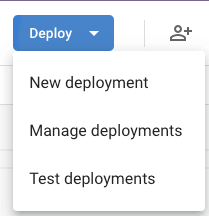
Although Apps Script offers multiple types of deployment, there are also many internal automations that do not require being published as web applications. In this case, a Container-bound script is used, or a script linked to Google Sheets with installable triggers, which allows the logic to run automatically within the Google Workspace environment.
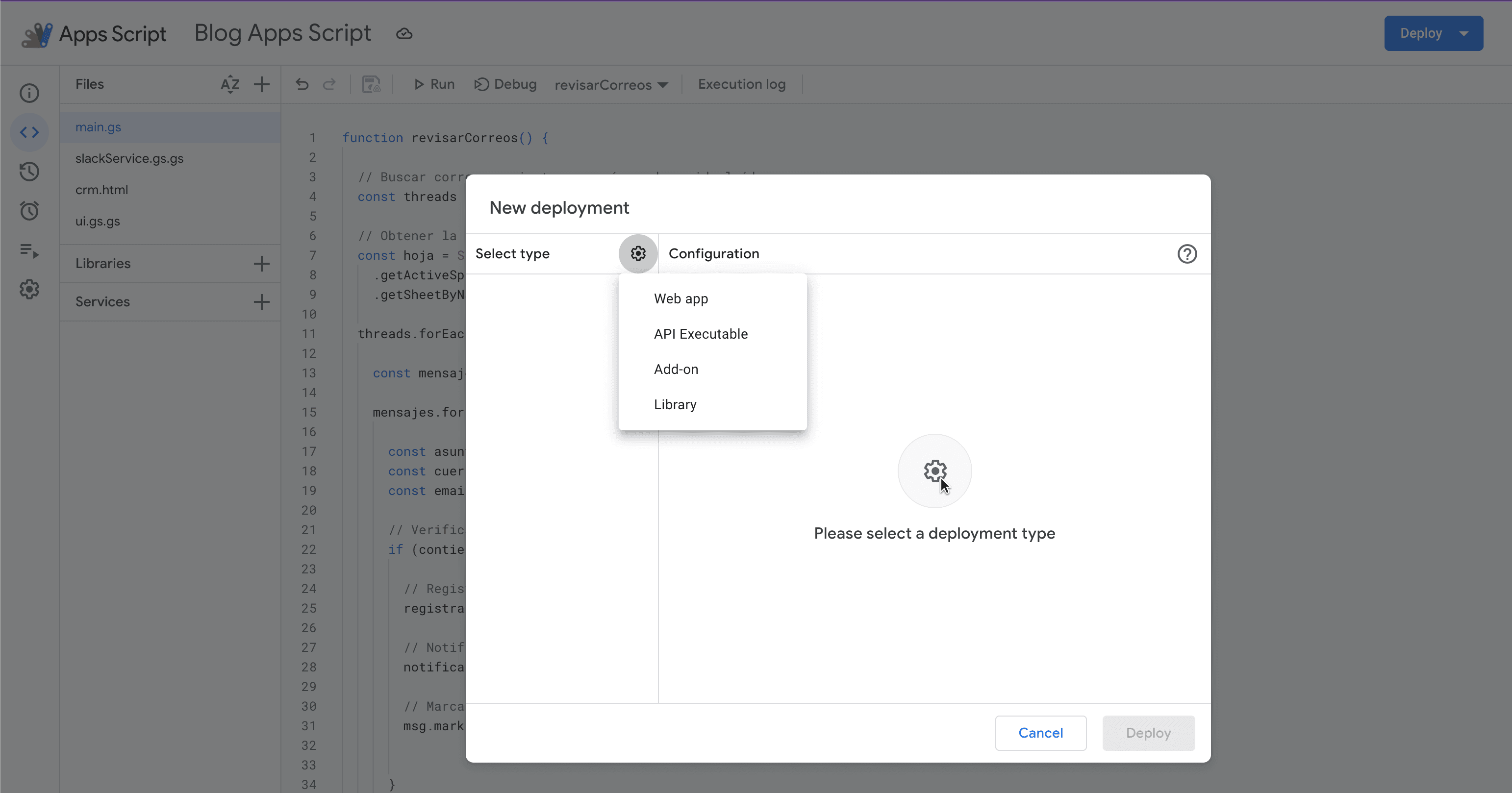
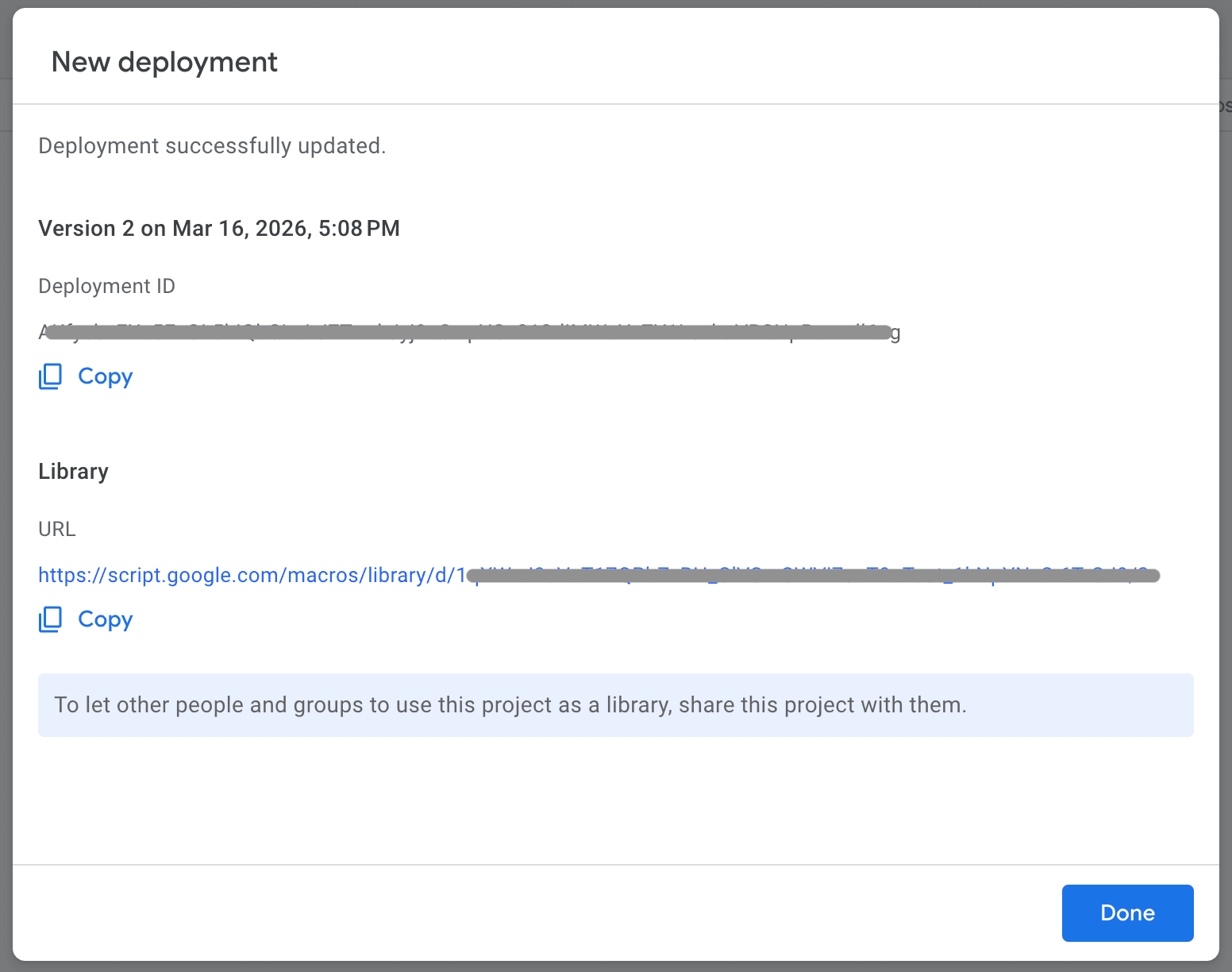
Deployments serve to make the script public as an external service, so the different types that exist and their purposes will be explained:
- Web App: Allows publishing the script as a web application accessible via URL. Some use cases to consider for this are Dashboards, custom forms, simple APIs, or internal Apps.
- API Executable: Used when other applications want to execute the script via API. Some cases could be; external backend, integrations with other systems, or automation from servers.
- Add-on: Used for creating installable extensions for Google Workspace, whether as extensions for Gmail, Sheets, or Docs, which are published in the Google Workspace Marketplace.
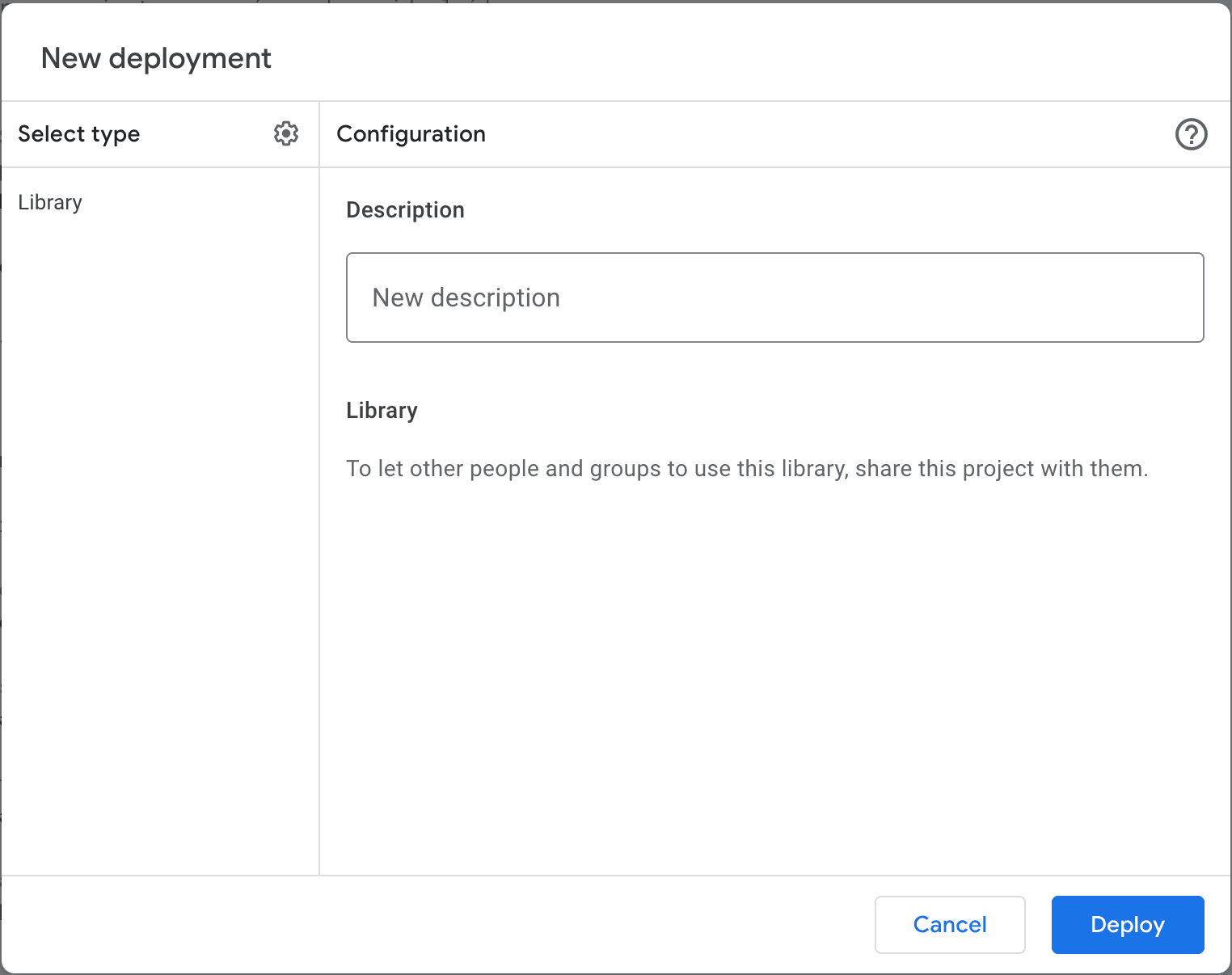
- Library: This allows code reuse across multiple projects by publishing it as an importable library.
It should be considered that once any deployment is configured, you will get a URL either to open the web application, access the library, or call the API.
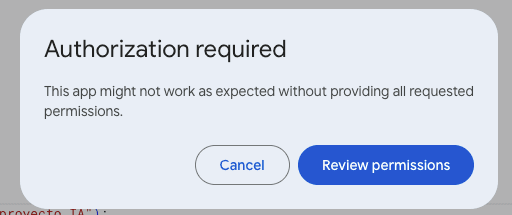
📌 It should be considered that for the first execution of the Script, it will request permissions from the Google account and the workspace applications that are part of the flow, so it is expected that a message requesting these permissions will appear.
6. Examples of Use Cases
While this automation pattern has the capacity to be expanded with automatic classification with AI, lead analysis, dashboards, automatic tracking, and more, this same flow could be applied to other scenarios such as:
- Support ticket management
- Internal requests
- Recruitment
- Supplier management
There are more scenarios and applicable flows for each depending on the preferences that may arise for each team or company, so Google Apps Script allows transforming these everyday tools into automated solutions that solve real problems.
Limitations to Consider
It should be kept in mind that while this is a powerful and useful tool for organizations that are part of Google Workspace, it also comes with certain limitations depending on the plans they have, which must be considered to design realistic solutions:
- Execution quotas and time:
- Execution time: There is a maximum execution time for a standard script, which is 6 minutes.
- Triggers: There is a maximum total time per trigger per day generally 90 minutes on free accounts, but it rises to 6 hours for Google Workspace accounts.
- Limits of specific services:
Each of the tools that are part of the Google ecosystem has its own daily restrictions, for example:
- Gmail: It has a sending limit of 100 recipients for personal accounts, and 1500 for Workspace accounts.
- URL Fetch: It has a limit on the data size and the number of calls to external APIs.
- Environment:
- Libraries: Unlike Node.js,
npmpackages cannot be imported directly; you must use the internal Google Apps Script libraries or external web services. - Processing capacity: Apps Script is designed for automation processes, workflows, and integrations, but it is not ideal for massive processes, complex systems, or high concurrency.
- Libraries: Unlike Node.js,
To ensure that the planned processes and their concurrency are within the quotas of each account, this information is available within Google's documentation.
Conclusion
Google Apps Script represents a powerful solution for process automation, tool integration, and the development of custom solutions within the Google environment.
Its ease of use, flexibility, and integration capability make it a valuable advantage for both developers and teams looking to improve their productivity efficiently.
In a technological environment where automation and efficiency are increasingly important, this tool positions itself as an accessible and powerful alternative to help manage digital processes for organizations.
Previous Posts

Augmented Coding vs. Vibe Coding
AI generates functional code but does not guarantee security. Learn to use it wisely to build robust, scalable, and risk-free software.

Kraneating is also about protection: the process behind our ISO 27001 certification
At the end of 2025, Kranio achieved ISO 27001 certification after implementing its Information Security Management System (ISMS). This process was not merely a compliance exercise but a strategic decision to strengthen how we design, build, and operate digital systems. In this article, we share the process, the internal changes it entailed, and the impact it has for our clients: greater control, structured risk management, and a stronger foundation to confidently scale systems.